The short answer
Download the originals to a folder you control, wait for the backup to finish, and open a sample of the saved files. A thumbnail or a file that still needs to download is not a verified local backup.
Before you start
A useful photo backup is a copy you can still open when the cloud account or internet connection is unavailable. Decide where that copy will live before starting a large download.
- Use a supported Windows 11 x64 PC with a reliable internet connection.
- Have access to the Apple Account that holds your photos, including its two-factor verification method.
- Check that the photos you want have finished uploading to iCloud. A PC download cannot recover pictures that exist only on your phone.
- Choose a local disk or connected external drive with room for your originals and future additions. A small phone storage footprint is not a reliable estimate if storage optimization is enabled.
Apple explains that iCloud Photos stores full-resolution originals and that these photos are not duplicated in iCloud Backup. Keeping another copy is useful even if you already back up your iPhone. See Apple’s explanation of iCloud Photos.
Choose a download method
For a small selection, you can use iCloud.com Photos: select the items, open the download options, and choose Unmodified Originals when you want the original formats. Apple currently allows selections of up to 1,000 items per download. See Apple’s download instructions.
If you use iCloud for Windows, make sure the files have actually downloaded. Its photo folder can contain thumbnails, and changes in your iCloud library can be reflected there. For an independent archive, copy the downloaded originals to a separate folder you manage. See Apple’s Windows download guide.
The steps below use PhotoKeeper for a repeatable backup and a library you can browse on Windows. Cloud downloads and backups require an active trial or license; the app offers a seven-day trial. Check the current requirements before downloading.
1. Connect your iCloud account
Download PhotoKeeper for Windows, install it, and add the Apple Account that contains your photo library. Complete Apple’s sign-in and verification prompts, then allow the library to load.
Look for a recent photo you recognize. If it is missing, first check the account and whether that photo appears on iCloud.com. Changing backup settings will not make an item available before it reaches iCloud.
2. Choose your folder and backup scope
Open Backup. Beside Save location, choose Change and select your destination folder. Use a clearly named folder such as D:\Photo archive. An external drive is useful if your internal disk has limited space; it must stay connected while the backup runs.
Open Backup scope and review what will be included. Choose the full library if you want a complete photo archive. A limited selection can be useful for a first test, but completing that test does not mean the rest of the library has been saved.
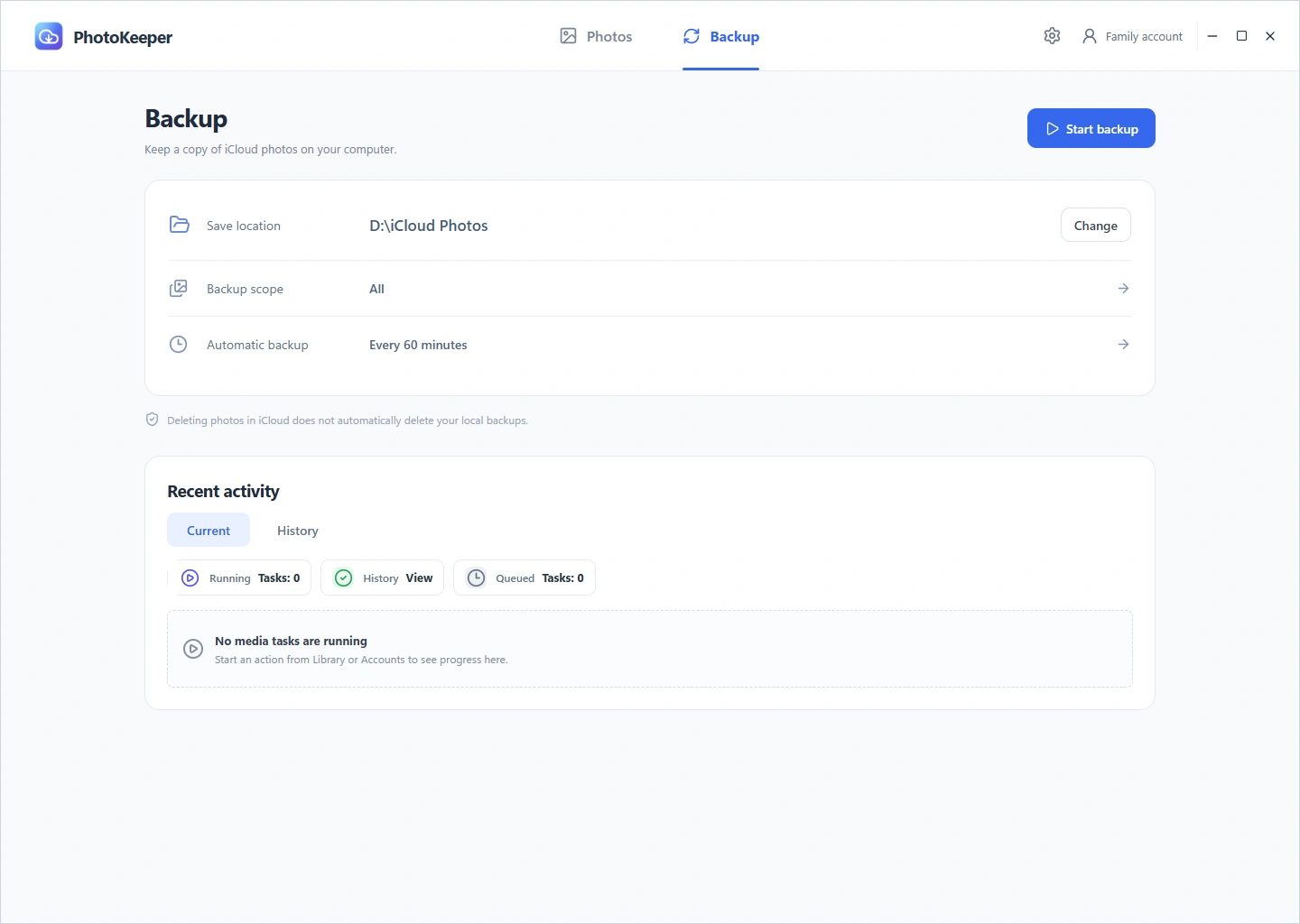
3. Run the backup and review the result
Select Start backup. Keep PhotoKeeper open, the PC awake, and the destination drive connected. Large libraries take time, especially when they include long videos.
Review Recent activity when the run finishes. Resolve failures or incomplete items before treating the selected scope as backed up. PhotoKeeper skips files it has already completed, so later runs can focus on additions instead of downloading the same finished files again.
4. Verify the files you saved
- Open the destination folder in File Explorer and confirm it contains media files, not just shortcuts.
- Open several originals from different years, including a recent photo and a large video. Temporarily disconnecting the network helps confirm that these samples are local.
- For Live Photos, check the image and its companion motion file. Follow the Live Photos guide to test playback.
- Compare the chosen scope with the completed run. Do not compare only raw file counts: one Live Photo can produce more than one file.
Sampling catches common problems; it is not proof that every file is intact. Review any failures and keep a second copy on another physical drive for photos you cannot replace. Do not remove your cloud originals merely because thumbnails appear in the app.
5. Keep the backup current
Use Automatic backup to choose a schedule that suits you. Scheduled work needs PhotoKeeper running, an awake PC, an internet connection, and access to the destination disk. Check the latest completed run periodically, especially after travel or reconnecting an external drive.
Deleting an item in iCloud does not automatically remove its completed PhotoKeeper backup. However, the local disk can still fail or files can be deleted manually, which is why a second copy matters.
This backup process does not free iCloud storage or change your plan. If reducing your subscription is the next step, work through the checks before downgrading iCloud storage first.