The short answer
Preserve both the original still image and its companion video. In PhotoKeeper, download the original, open the item in Photos, and use the Live control once playback preparation has finished.
What you need to preserve
A Live Photo includes a still image and a short motion recording. In PhotoKeeper’s local backup, the original image and companion video are separate components of the same item. Keeping only a JPEG or HEIC file preserves the still, but does not preserve the motion.
Keep both components in your archive. Avoid renaming, converting, or moving just one of them while organizing your files. A JPEG conversion or a shareable video can be useful for a particular app, but should be an additional copy of the original pair.
This guide uses PhotoKeeper on a supported Windows 11 x64 PC. You need access to the Apple Account that holds the Live Photos, enough local space, and an active PhotoKeeper trial or license for cloud downloads. The app offers a seven-day trial. See the current system requirements.
1. Find a Live Photo in your library
Install PhotoKeeper and connect your Apple Account, completing Apple’s verification prompts. Open Photos and locate a known Live Photo.
Start with an item that you can play on your iPhone. Confirm that the same item has reached iCloud if it does not appear on your PC. A picture that was previously exported as a still image may look identical while no longer containing its motion component.
Apple describes how iCloud Photos stores originals, including Live Photos, in its iCloud Photos guide. That does not mean every export or file-sharing method keeps all of those components.
2. Download the original components
Use Download original for the selected item, or include it in a backup from the Backup page. For a full collection, choose a save location and review the backup scope before starting. The Windows backup tutorial walks through those settings.
Wait for the download work to finish and review any failures. A visible thumbnail is useful for browsing, but it does not establish that the original image and motion have both been saved.
If you prefer a manual download for a few items, iCloud.com offers an Unmodified Originals download option. After extracting the download, inspect the files and test the motion rather than assuming that a preview image is the complete Live Photo. See Apple’s download instructions.
3. Open the item and play its motion
Open the item in PhotoKeeper’s photo viewer. For a recognized Live Photo, use the Live control when it is ready. PhotoKeeper may first prepare a playback copy so that the motion can play in the Windows viewer.
Allow that preparation to finish. If it fails, check the activity or error message and retry when the original files are available. Repeatedly clicking a disabled control will not complete a missing download.
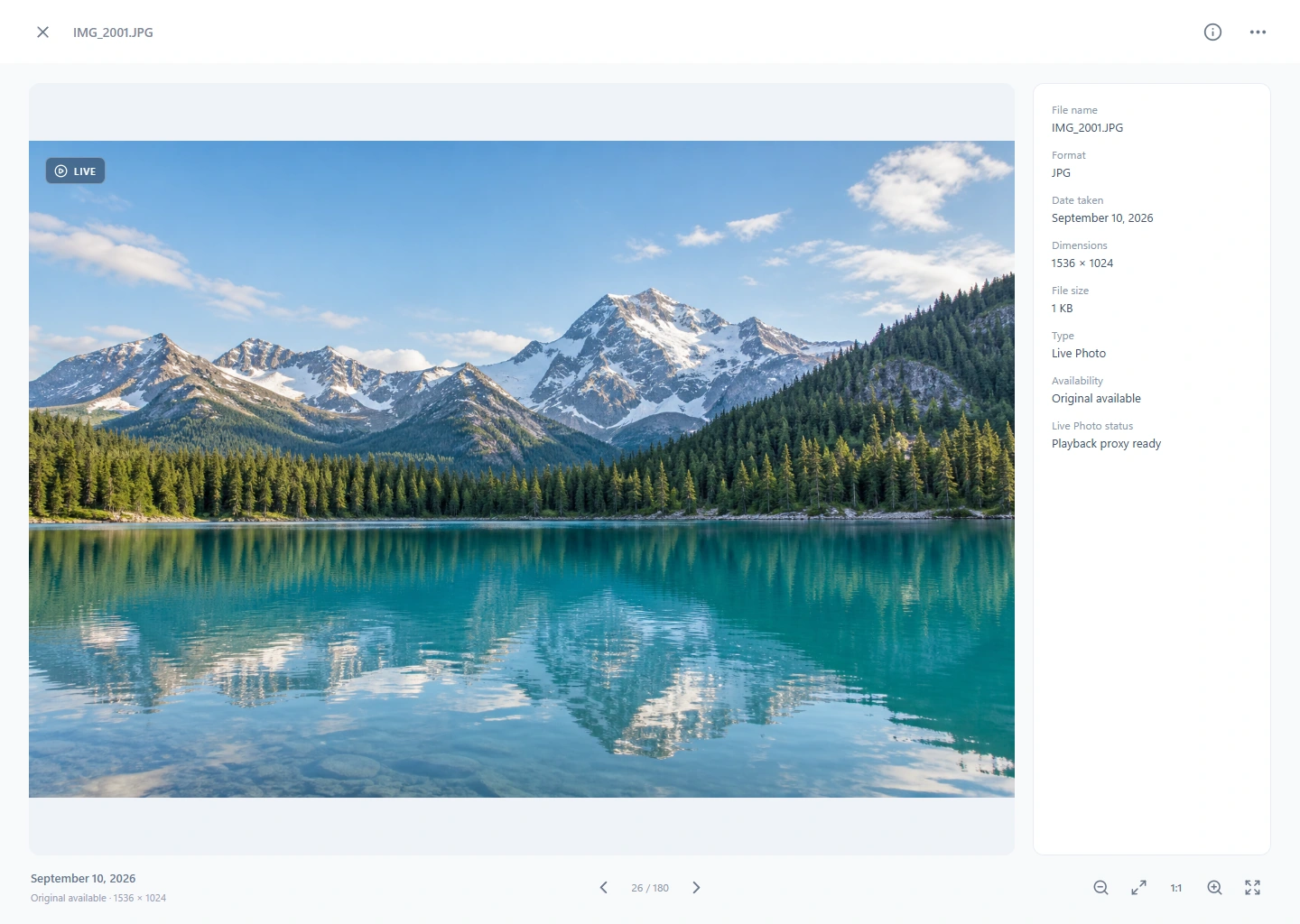
The playback copy is for viewing. Keep the downloaded original image and companion video for your archive; do not substitute a cached preview or playback proxy for those originals.
4. Check your local copy
- Confirm that the still image opens and that the companion video is present.
- Play several Live Photos, including older and newer items, instead of testing only one.
- After downloads and playback preparation finish, disconnect the network briefly and test those saved samples again.
- When copying the archive to another drive, copy the complete media folders and preserve the related files together.
Seeing a still image proves only that the image can be displayed. Playing a prepared preview proves that the preview works. Neither check alone confirms that the complete original pair is safely archived.
If the photo stays still
- There is only an image file.
- Check the source in iCloud and review the download result. If the source still contains the motion, download its originals again. Software cannot reconstruct the original recording from a still image alone.
- The original download is complete, but playback is still preparing.
- Let the preparation task finish with the local drive connected. Check the reported error if it fails; original download and playback preparation are separate work.
- The video plays separately, but another Windows app shows only the still.
- That app may not recognize the two files as one Live Photo. Use a viewer that supports the pair, such as PhotoKeeper. Opening the video separately can help check the motion file, but is not the same viewing experience.
Before deleting anything from iCloud, verify the archive and make another independent copy. See what to check before changing your iCloud storage plan if that is why you are downloading your collection.