Deletions sync, too.
A deletion in iCloud can reach your other devices. Completed local backups are not automatically deleted with the cloud copy.
iCloud Photos backup, made for Windows
Browse and back up iCloud Photos. Upload local originals and move photos between accounts.
Keep every memory, wherever it goes.
Windows 11 x64 · iCloud Photos

Why keep a separate copy?
A deletion in iCloud can reach your other devices. Completed local backups are not automatically deleted with the cloud copy.
Save original photos and videos to a drive you choose, and build an independent archive of the moments you collect.
Set a schedule to save new photos. Resume interrupted tasks instead of organizing everything from scratch.
Meet PhotoKeeper
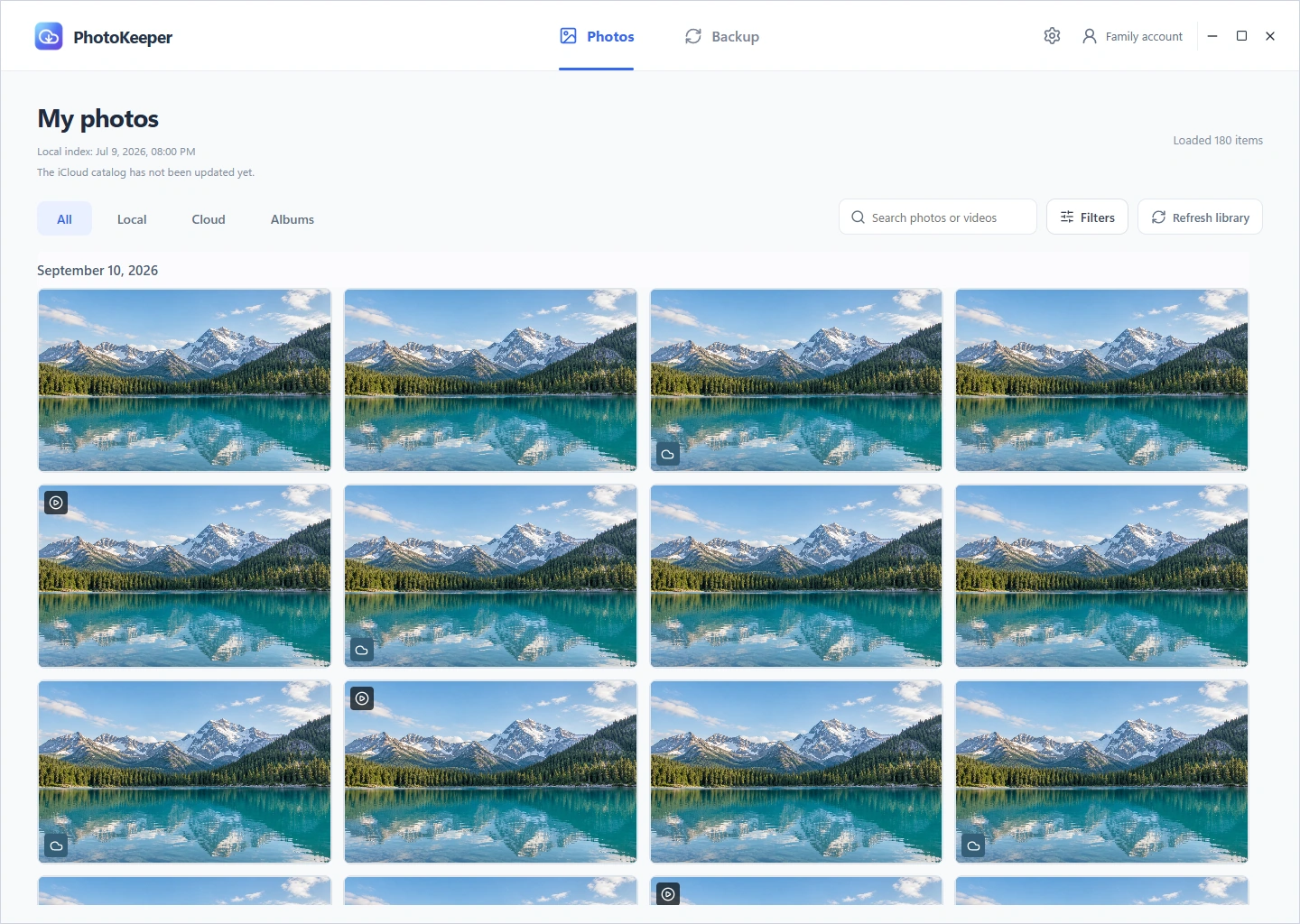
Explore your iCloud photos in a familiar gallery. Find moments by date, album, or keyword, then download the original photos and videos you want.
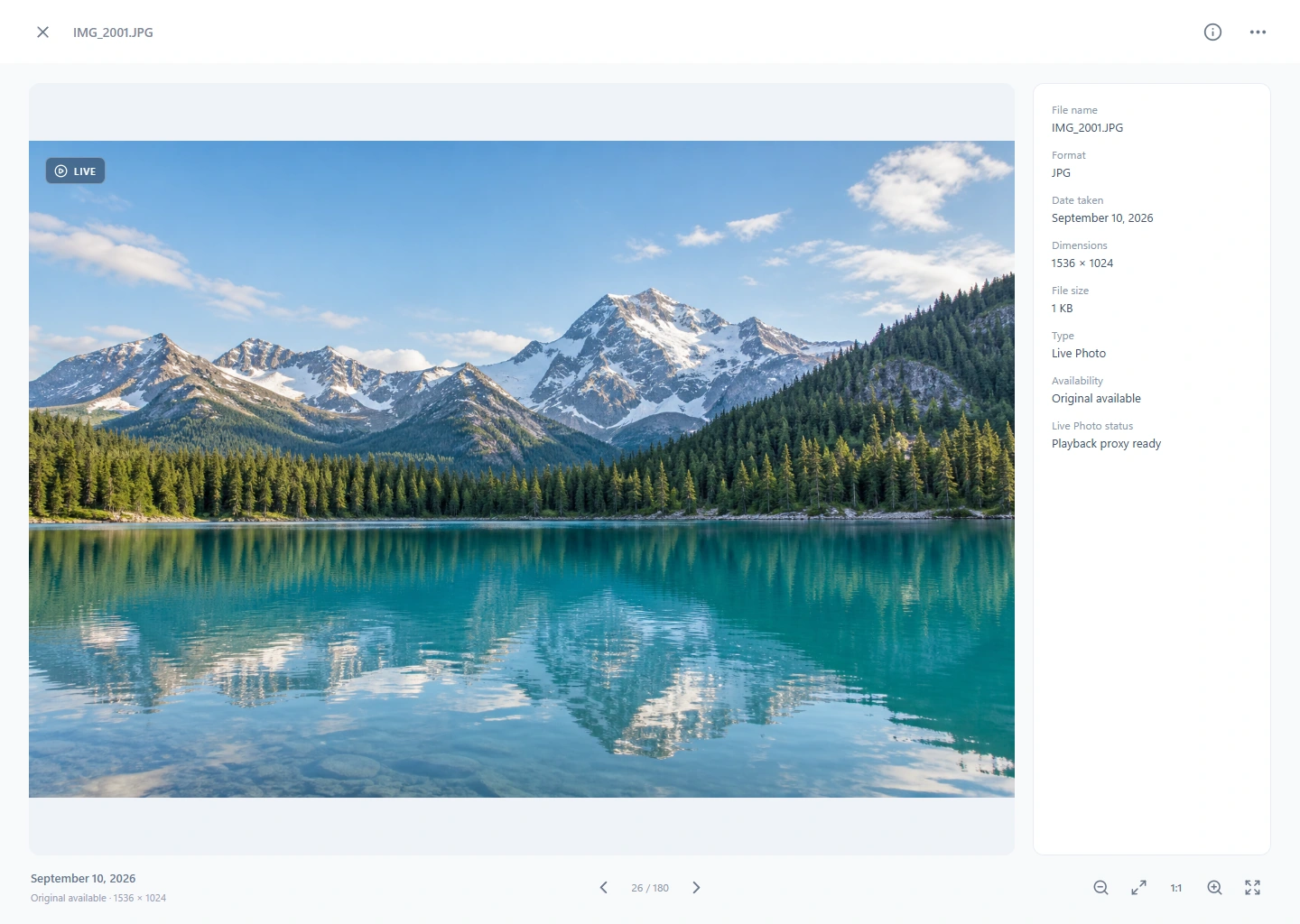
Keep original photo and video files. Explore the details on a larger screen and play Live Photos, preserving both the picture and the moment around it.
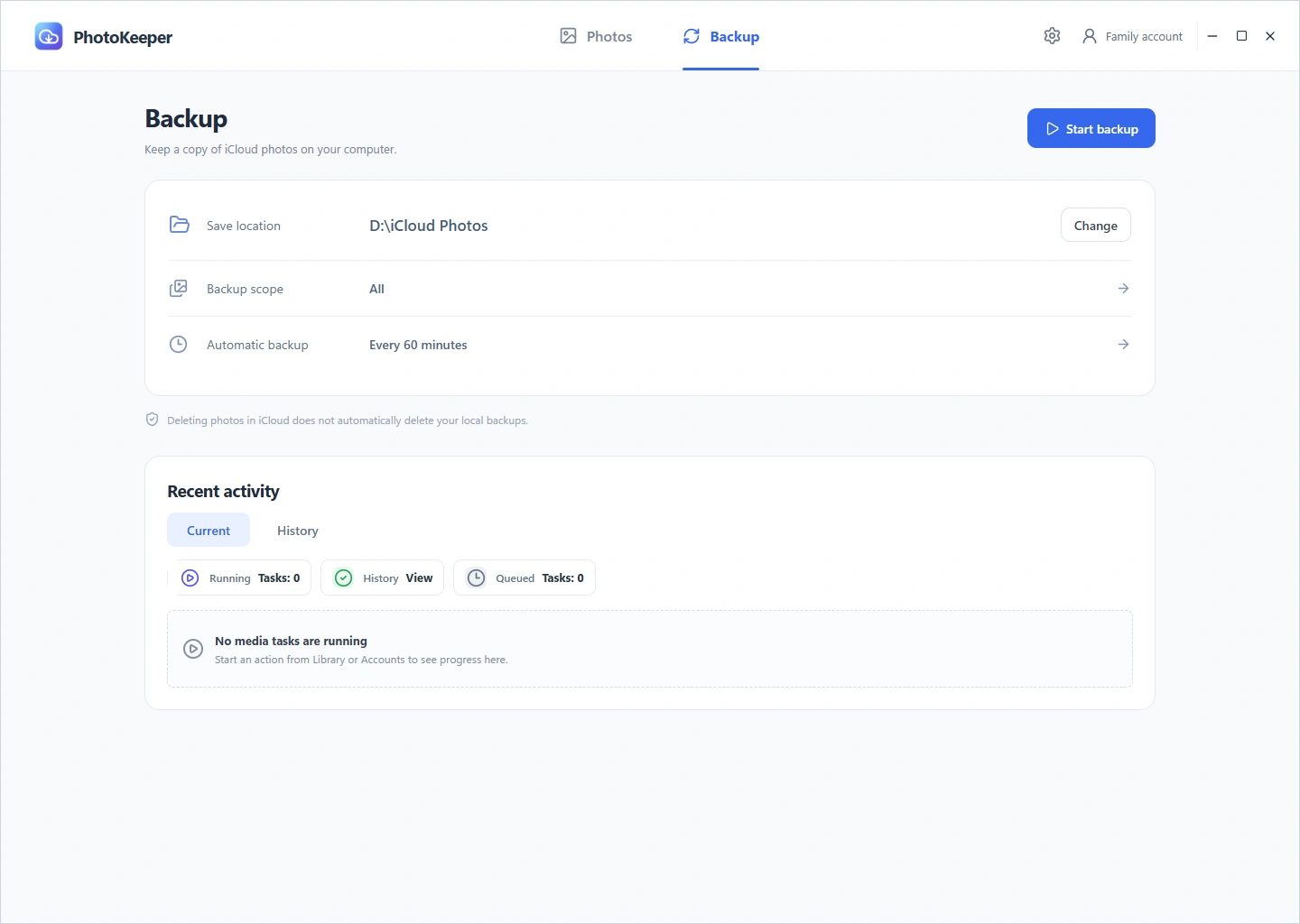
Choose what to back up and how often. Save new photos incrementally, follow progress and history, and continue when a task is interrupted.
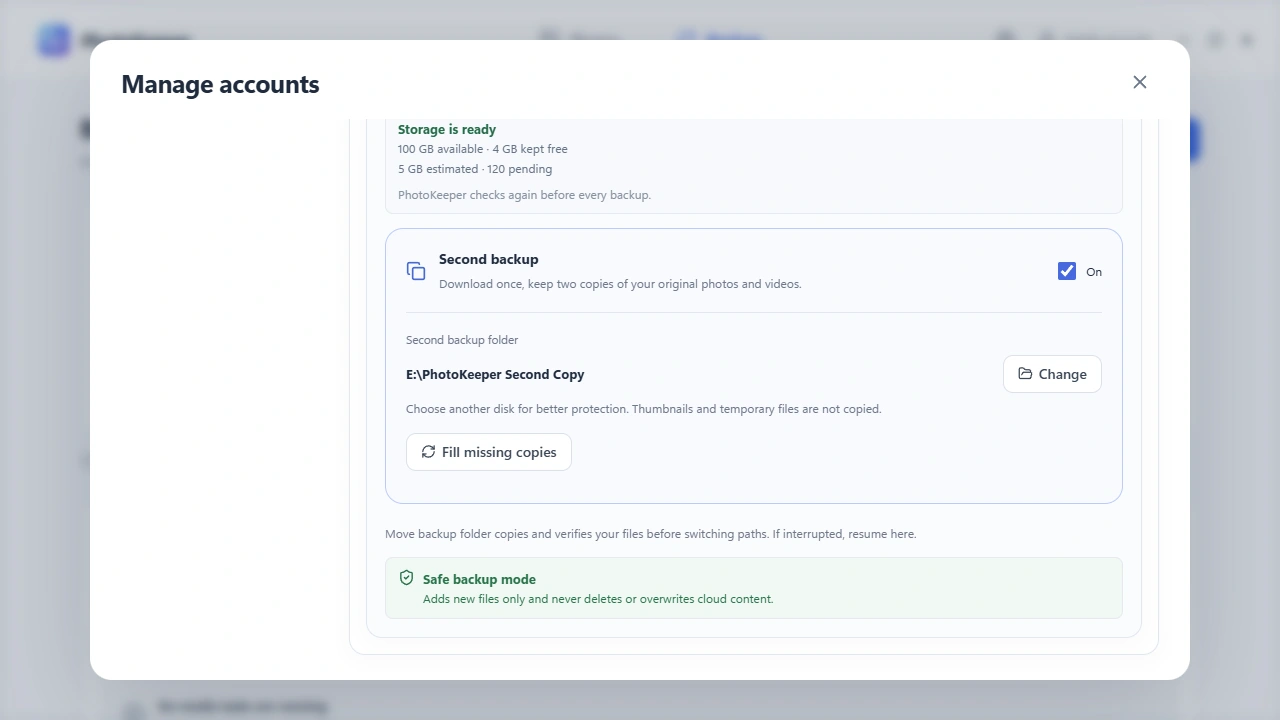
Save originals to a folder on your computer or an external drive. Enable a second backup to download once and keep another copy in a separate folder.
More ways to keep your photos
From a folder on your computer to a new iCloud account, give your photos a place to go.
Bring photos, videos, and Live Photos from your computer into your own iCloud library.
Copy selected photos or a whole library to another iCloud account, keeping the source content.
Convert supported Android motion photos into Live Photos and upload them to iCloud to enjoy on iPhone. Compatibility depends on the original file format.
Uploads are read back and verified. Resume interrupted tasks from their saved history while PhotoKeeper is running.
How it works
Connect your own iCloud photo library, choose a destination, and set your backup schedule.
Complete sign-in and two-factor authentication in the client to connect your iCloud Photos library.
Select a local folder or external drive, choose your backup scope, and leave enough room for the originals.
Activate a license, then start manually or set a schedule. Cloud backups run while the app is open and online.
PhotoKeeper exchanges media directly with the iCloud accounts you select. Backups stay on your storage; we do not host your photo library.
Privacy PolicyiCloud Photos keeps devices in sync, including deletions. PhotoKeeper helps you save an additional, independent local copy. Completed backup files are not automatically removed when cloud content is deleted. It does not automatically clean up or free iCloud storage.
After signing in to iCloud, choose Start free trial for 7 days of full library synchronization, original downloads, and manual or automatic backups. No card is required. Each iCloud account has one trial; reinstalling or changing devices does not restart it. After expiry, activation is required for cloud operations. Local photos remain available to view, open and export.
Yes. Choose a local folder or a supported external drive, and optionally enable a second backup folder. Keep the drive connected with sufficient free space. Network storage is outside formal support for the initial release.
Supported systems are Windows 11 x64 versions supported by Microsoft. Cloud access, purchase and license refresh require internet. Offline authorization lasts up to 24 hours during the first 15 days after purchase or upgrade and while a refund is pending, otherwise up to 30 days. Existing local files remain accessible.
Practical guides
Original photo backup
Choose a folder, download your originals, and check that your memories are actually saved.
4 min readLive Photos on Windows
Keep the still image and the motion together, then check playback on your PC.
4 min readiCloud storage planning
Check your storage, verify your copies, and decide what needs to stay in iCloud.
4 min readLive Photo uploads
Pair the original image and MOV, upload them together, and check the result on your iPhone.
5 min readiCloud account migration
Choose two accounts, review your selection, and copy the originals while keeping the source.
5 min read
Connect your own iCloud photo library, choose a destination, and set your backup schedule.
Download for WindowsWindows 11 x64 · iCloud Photos
Windows 11 x64 · iCloud Photos and two-factor authentication required